동영상으로 레이어로 만드는 경우, 중앙에 위치하지 않고 중앙에서 벗어나는 경우가 있습니다. 이럴때는 [Size & pos]를 선택하신후 Position& Size에서 하단의 [Preview(미리보기)]를 보면서 배치 정렬(Alignment)을 이용하여 설정해주세요.



내용이 너무 길어지고 있습니다. 가능하면 적당한 주제를 잡아 “Revolution Slider(워드프레스 플러그인)(2)로 분리해 주세요.
Smart Slider 보다 더 훌륭한 플러그인 같습니다.
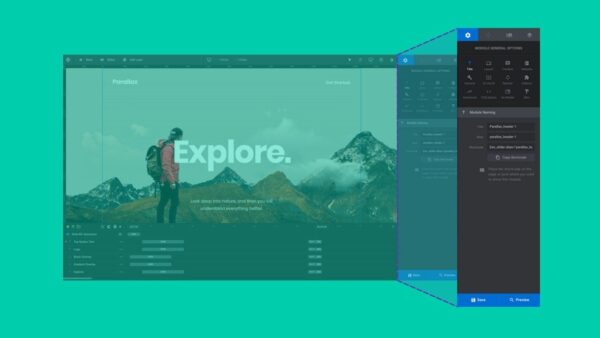
슬라이더 기능도 가지고 있지만 전면페이지의 탑이미지를 꾸미는 도구로 보는 것이 맞을 것 같습니다.

( 이미지 출처 : 사이드 바 : 옵션 및 저장( Sidebar: Options & Saving ) )
일반 옵션 탭에는 전체(general) 모듈에 영향을주는 컨트롤이 있습니다. 여기에서 모듈 이름 지정, 전체 레이아웃 제어, 슬라이드 기본값 설정 및 기타 전역 수준 설정과 같은 작업을 수행 할 수 있습니다.(General Options tab you’ll find controls that effect the whole module. Here you can do things like giving your module a name, controlling overall layout, setting slide defaults and other global level settings.)

( 이미지 출처 : 사이드 바 : 옵션 및 저장( Sidebar: Options & Saving ) )
탐색 옵션 탭은 사람들이 하나의 슬라이드 사이를 어떻게 탐색하게 하는지 그 방법을 당신이 결정할 수 있도록 합니다.( The Navigation Options tab lets you determine how people can navigate between one slide [?] )
그리고 또 다른. 화살표, 글 머리 기호 또는 탭을 사용할지 여부, 슬라이드 축소판을 표시할지 여부, 마우스, 키보드 및 터치와의 상호 작용 방식을 선택할 수 있습니다.( and another. You get to choose whether to use arrow, bullets or tabs, whether you want to show slide thumbnails, and how interaction will work with mouse, keyboard and touch.)

( 이미지 출처 : 사이드 바 : 옵션 및 저장( Sidebar: Options & Saving ) )
슬라이드 [?] 옵션 탭을 사용하면 슬라이드의 배경, 축소판 이미지 및 전환 애니메이션과 같이 슬라이드마다 다를 수 있는 항목을 제어 할 수 있습니다. 여기에서 시차 이동 및 Instagram과 같은 색상 필터와 같은 멋진 효과를 추가 할 수도 있습니다.( The Slide [?] Options tab lets you control things that might differ from slide to slide, such as a slide’s background, thumbnail image and transition animation. You can also add cool effects here, such as parallax movement and Instagram-like color filters.)
 ( 이미지 출처 : 사이드 바 : 옵션 및 저장( Sidebar: Options & Saving ) )
모든 개별 레이어 [?] 레이어 옵션 탭을 통해 제어 할 수있는 설정이 있습니다 . 따라서 레이어를 선택할 때마다 사이드 바가 자동으로 레이어 옵션 탭 으로 전환됩니다 . 여기에서 레이어의 모양, 레이어의 내용 및 누군가가 레이어와 상호 작용할 때 발생하는 상황에 대한 몇 가지 사항을 변경할 수 있습니다.( Every single individual layer [?] has settings you can control through the Layer Options tab. For that reason, any time you select a layer the sidebar will automatically switch to the Layer Options tab. Here you can change several things about the way the layer looks, the content of the layer, and what happens when someone interacts with the layer. )

( 이미지 출처 : 사이드 바 : 옵션 및 저장( Sidebar: Options & Saving ) )
사이드 바 하단에 있는 파란색 저장 버튼을 클릭하면 모듈에 대한 변경 사항을 저장할 수 있으며 그 옆에 있는 미리보기 버튼 을 클릭하면 모듈이 게시되었을 때 어떻게 보이는지 보여주는 창이 나타납니다.( Saving the changes you’ve made to your module can be done by clicking the blue Save button at the bottom of the sidebar, and when you click the Preview button next to it a window will appear showing how your module will look when published. )

( 이미지 출처 : 사이드 바 : 옵션 및 저장( Sidebar: Options & Saving ) )
모듈의 최신 버전을 확인하려면 미리보기 전에 항상 저장하는 것이 좋습니다.( It’s good practice to always save before you preview, to ensure you’re seeing an up to date version of your module. )
상세 사용법에 관한 문서는 https://www.sliderrevolution.com/documentation 에 있습니다.
Using Revolution Slider With BeTheme BASICS(6:23)
아래의 동영상은 시청한후 이글의 적당한 곳에서 활용해 주세요. 구 버전이라 현재의 버전과는 맞지 않으면 폐기해 주세요.
How To Disable The Slider Visibility In Mobile Devices Using Revolution Slider WordPress Plugin?(3:39)
아래의 동영상의 레이어들을 보이게 하거나 숨기거나 하는 방법을 알려주는 동영상입니다.
http://https://www.youtube.com/watch?v=wCnJfthztFw
YouTube와 같은 동영상을 배경으로 삽입하는 방법을 설명하는 동영상입니다. 동영상으로는 유튜브, 비메오 그리고 upload한 동영상을 플레이할 수 있습니다.
설정 방법은 Layer Video/Audio Settings 을 참조하세요.
동영상 배경으로 사용한다는 것은 Slide BG(Background) Animation 으로 동영상을 이용한다는 의미입니다.
Slide BG(Background) Animation 으로 동영상을 넣으면 잘 작동이 되고 매우 인상적인 사이트를 만들수 있습니다. 적용된 예를 보고 싶으시면 https://themes.muffingroup.com/be/media2/ 을 살펴보세요.
유튜브 동영상을 넣는 경우, 아래의 순서대로 하시면 됩니다. YouTube ID는 유튜브 동영상의 주소가 https://www.youtube.com/watch?v=iYUBZ-YgMLc 이라면 “iYUBZ-YgMLc”가 ID입니다. 
동영상의 소리가 나지 않습니다. 소리가 나게 하려면 레이어들 추가하고 동영상을 연결해 주어야 합니다. 레이어 동영상을 연결해주고 세팅하는 방법은 Layer Video/Audio Settings 을 참조하세요.
동영상으로 레이어로 만드는 경우, 중앙에 위치하지 않고 중앙에서 벗어나는 경우가 있습니다. 이럴때는 [Size & pos]를 선택하신후 Position& Size에서 하단의 [Preview(미리보기)]를 보면서 배치 정렬(Alignment)을 이용하여 설정해주세요.
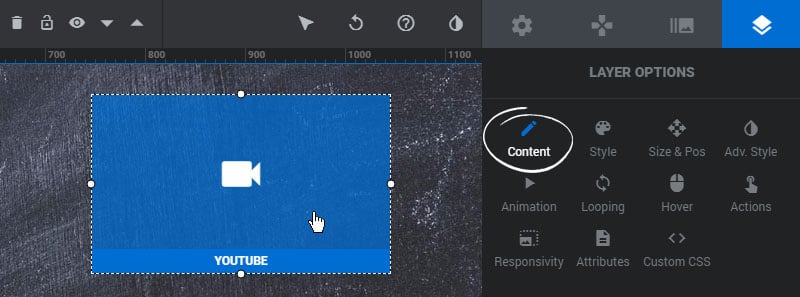
To edit a Video or Audio Layer’s content and settings, select the Layer on the stage and then visit its “Content” section.
1. Aspect Ratio
Change this to 4:3 for older videos. Otherwise leave at 16:9.
2. Auto Play
Select if your video should autoplay (see note above about volume restrictions).
3. Loop
Choose if the Video should automatically replay each time it ends, and whether or not the Slide should pause its progress while looping.
4. Overlay
Add an optional mesh-type overlay to the video for additional styling.

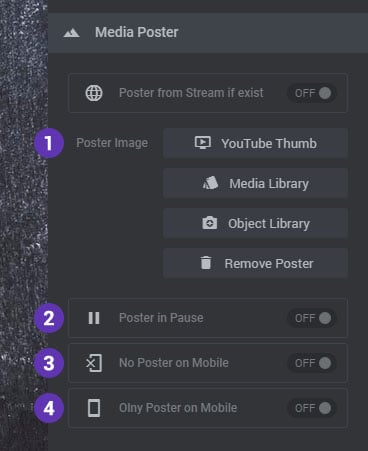
Video Layers can have an optional poster image that will show before the video is played.
1. Poster Image
YouTube 비디오 용 YouTube.com에서 미리보기 이미지(포스터 이미지)를로드하거나 미디어 / 개체 라이브러리에서 사용자 정의 포스터 이미지를 설정하도록 선택합니다.( Choose to load the poster image from YouTube.com for YouTube videos, or set a custom poster image from the Media/Object Library.)
2. Poster in Pause
Enable this option if you wish to display the poster image when the video is paused by the user.
3. No Poster on Mobile
Choose to hide the poster image on mobile devices.
4. Only Poster on Mobile
Choose to only display the poster on mobile devices.
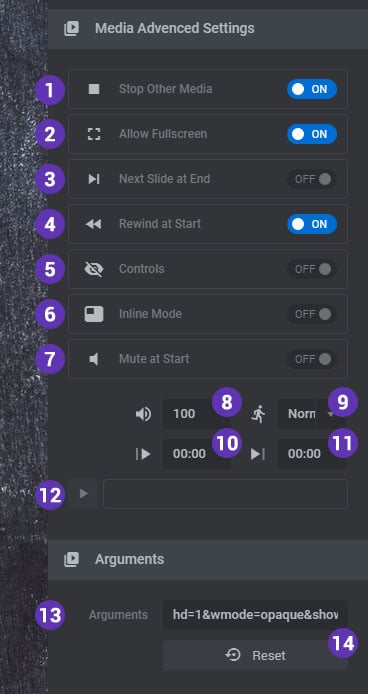
1. Stop Other Media
Automatically pause all other videos/audio in the Slide when the video begins to play.
2. Allow Fullscreen
Adds a fullscreen button to the video so the user can take the video fullscreen if they want.
3. Next Slide at End
Enable this option to automatically change to the next Slide when the video has ended.
4. Rewind at Start
Always play the video from the very beginning each time the Slide is shown.
5. Controls
Include play/pause/volume controls.
6. Inline Mode
Adds a “playsinline” attribute to the video. This allows the video to be played without taking the video fullscreen on mobile devices.
7. Mute at Start
Automatically mute the video when the video first plays.
8. Video Volume
The video’s default volume (0-100).
9. Video Speed
Choose to play the video in slow-motion or high-speed. Applicable for YouTube videos.
10/11. Start/End Time
Set a custom start and/or end time for the video in “minutes:seconds” format.
12. Video Preview
Preview the video from inside the editor.
13. Arguments
YouTube Arguments and Vimeo Arguments for additional options.
14. Reset Arguments
Reset the YouTube or Vimeo arguments to the plugin defaults.
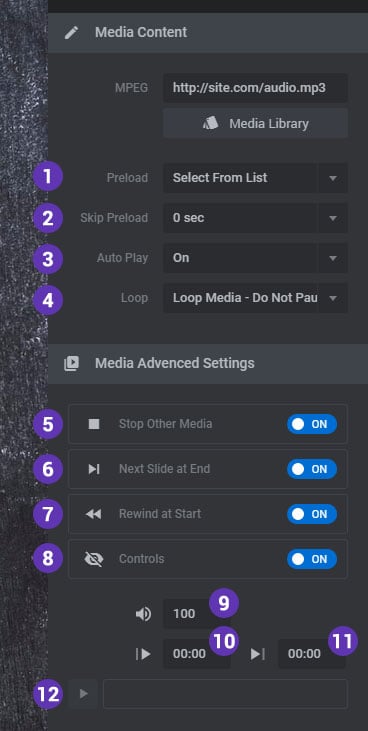
1. Preload
The HTML5 Audio preload attribute for the Layer.
2. Skip Preload
Delay preloading of the audio until a set amount of seconds have passed.
3. Auto Play
This option is now deprecated, as HTML5 Audio now requires a user gesture.
4. Loop
Choose if the audio should automatically replay each time it ends, and whether or not the Slide should pause its progress while looping.
5. Stop Other Media
Automatically pause all other videos/audio in the Slide when the video begins to play.
6. Next Slide at End
Enable this option to automatically change to the next Slide when the audio has ended.
7. Rewind at Start
Always play the audio from the very beginning each time the Slide is shown.
8. Controls
Include play/pause/volume controls.
9. Audio Volume
The audio’s default volume (0-100).
10/11. Start/End Time
Set a custom start and/or end time for the audio in “minutes:seconds” format.
12. Audio Preview
Preview the audio from inside the editor.
이 지침은 Slider Revolution 버전 6 용입니다. 이전 버전을 실행중인 경우 Avada> 플러그인 페이지 를 통해 업데이트하는 것이 좋습니다 .
1 단계 – WP 관리자에서 Slider Revolution 탭을 클릭하여 Slider Revolution 인터페이스를 엽니다. 생성하거나 가져온 모든 슬라이더는 축소판으로 표시됩니다.
2 단계 – 내보내려는 슬라이드의 축소판 위에 마우스를 놓고 오른쪽 하단 모서리에있는 작은 화살표를 클릭합니다.
3 단계 – 보여지는 옵션 중 하나인 내보내기(Export) 옵션을 클릭하면 확인 대화 상자가 나타납니다.
4 단계 – ‘예, 슬라이더 내보내기’를 클릭하면 다운로드가 시작됩니다. 다운로드가 완료되면 슬라이더 의 .ZIP 파일이 생성됩니다.


1 단계 – WP 관리자에서 Slider Revolution 탭을 클릭하여 Slider Revolution 인터페이스를 엽니 다. 인터페이스 상단에는 큰 버튼 행이 있습니다. ‘수동 가져 오기’는 세 번째입니다.
2 단계 – 클릭하면 파일 선택 대화 상자가 나타납니다. 가져 오려는 슬라이더 의 .zip 파일 을 선택하려면 ‘선택하려면 클릭’을 클릭하십시오 .
3 단계 – .zip 파일을 선택 하면 가져 오기 프로세스가 시작됩니다.
4 단계 – 업로드가 완료되면 이제 사용 가능한 Slider Revolution 슬라이더 목록에 가져온 슬라이더가 표시됩니다.


Slider Revolution에는 가져올 수있는 다양한 프리미엄 슬라이더 (템플릿)도 함께 제공됩니다. 그러나 이렇게하려면 라이선스를 구매하고 구매 코드를 활성화해야합니다.
우리가 제공하는 버전은 무료이고 모든 기능을 갖추고 있으며 업데이트 할 수 있지만 라이센스가 잠금 해제하는 프리미엄 기능은 포함하지 않습니다. 프리미엄 라이선스로 잠금 해제되는 기능은 아래를 참조하세요.

프리미엄 라이선스로 업그레이드하는 경우 Slider Revolution 인터페이스 상단의 ‘템플릿에서 새 모듈’버튼에서 많은 슬라이더를 가져올 수 있습니다.


추가적인 자세한 내용은 https://www.sliderrevolution.com/documentation/layer-animations/ 을 참조하세요.

slide option에서 [Animation] -> Transition Presets에서 [Base] -> [No Transition]을 클릭하시면 됩니다. 애니메이션(특수 효과)가 없어집니다.
아래의 게시글을 참조하세요. Minify HTML 플러그인을 이용하고 있으시다면 이 플러그인을 제거해주세요.
아래의 게시글을 참조하세요.
참고자료 : 1. Revolution Slider에서 동영상 배경 사용하기(워드프레스)
3. Rev slider you tube video no sound or controls